Embedding
One script tag puts a feature on your site. That's the whole integration.
The embed snippet
Open a feature in the dashboard. The Setup tab shows a live preview of the feature with the exact tag for it right below — always visible, with a Copy button next to it:
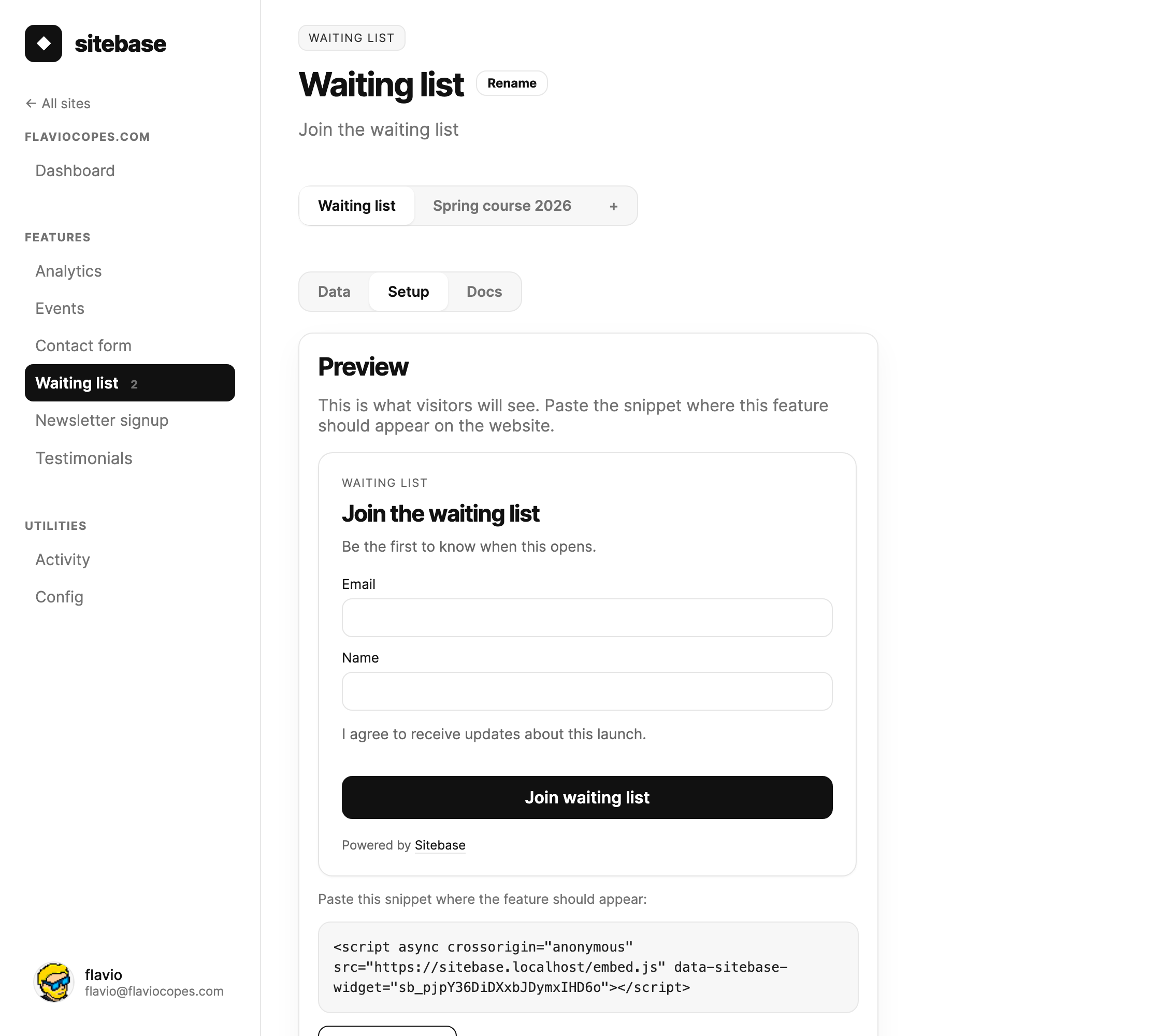
The snippet looks like this:
<script async crossorigin="anonymous" src="https://sitebase.dev/embed.js" data-sitebase-widget="sb_ESf6nEaF8LsO4dhyNCRME7"></script>
Paste it into your site's HTML where the feature should appear. It works on any site — plain HTML, WordPress, Shopify, Webflow, Astro, Next.js, anything that renders HTML.
Notice the data-sitebase-widget attribute: that key identifies your feature. Each feature has its own
snippet.
Every feature page also ends with a Docs tab — a reference for that specific feature: its snippet attributes, its hosted embed URL when available, and how its pageview reporting works. When new customization options arrive, that's where they'll be documented.
Feature-specific snippets
Most features use one snippet. A few have variants or setup rules:
- Countdown timer can show a fixed launch or sale deadline and optionally load a waiting list below it.
- Lead magnet needs a file upload before the form accepts signups.
- Forms can include custom fields, multi-step flows, and file uploads.
- Testimonials has variants for the wall, grid, carousel, marquee, and collection form.
- Newsletter signup has an optional popup variant.
- Status page shows a live uptime dashboard and incident timeline.
- Social proof and Cookie banner are script-only.
No script tags allowed? Embed by URL
A few platforms — Notion most notably — strip script tags. For those, every feature also has a hosted page you can embed by URL:
https://sitebase.dev/embed/sb_ESf6nEaF8LsO4dhyNCRME7
The URL sits right under the snippet in the same Setup tab, with its own copy button. Paste it into the platform's embed block. Forms, spam protection, and analytics all work inside the embed. The full walkthrough is in Notion and no-code platforms.
Some features and variants are script-only because they need to affect the host page itself. A popup, a corner toast, or a consent manager cannot control the surrounding page from inside an iframe.
How it works
The script is a tiny loader. It fetches the feature's HTML from Sitebase, mounts it in place of the script tag, and wires up the form so submissions go straight to Sitebase. Your page stays fast: the loader is cached and the feature HTML is served from the edge.
The same script also reports an anonymous pageview for the page it's on, so embedded features feed the website's analytics automatically. Pages without an embedded feature can be counted too, with the site-level snippet from the website's Analytics tab.
Tracking custom events
The embed script also exposes sitebase.track(), so you can record important actions that are not
captured by a built-in feature.
sitebase.track("signup_click", { plan: "pro" }) For simple clicks, you can avoid JavaScript and add an attribute:
<button data-sitebase-event="signup_click">Sign up</button>
Custom events appear in Events and can be used as Funnels steps.
Branding
Embedded features show a small "Powered by Sitebase" link at the bottom. It's on by default on every plan. On Pro and above you can turn it off per website: open the website's Config view and untick Show "Powered by Sitebase" on embedded features.
Spam protection
By default you don't need a captcha. Embedded forms include an invisible honeypot field, and submissions are rate limited per visitor. Suspicious entries are dropped silently.
If you want stronger protection, public form features can also require a Cloudflare Turnstile check. Enable it from the feature's Config tab — it works immediately with Cloudflare's test keys, and you can swap in your own keys for real protection. See Features for the details.